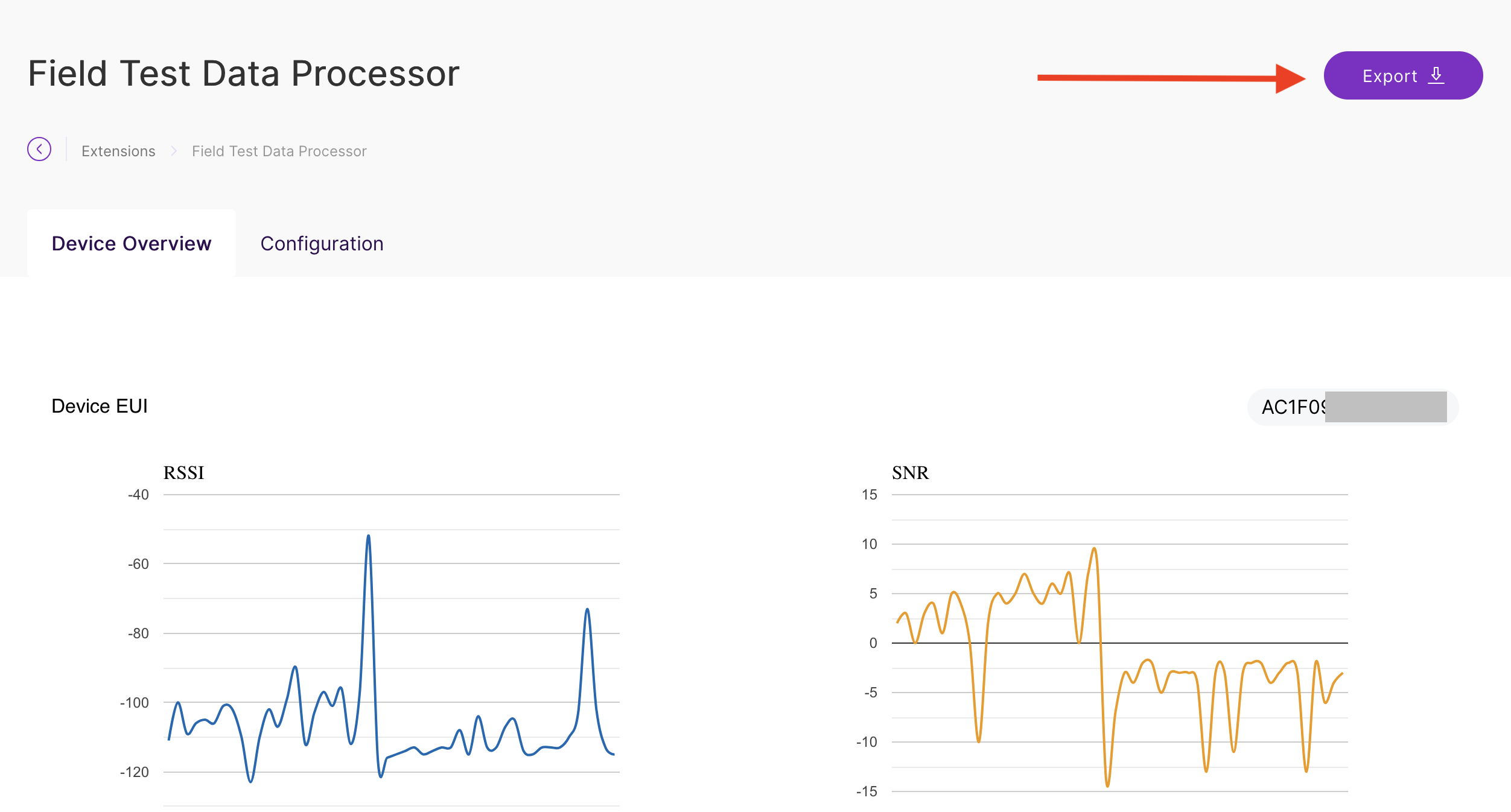
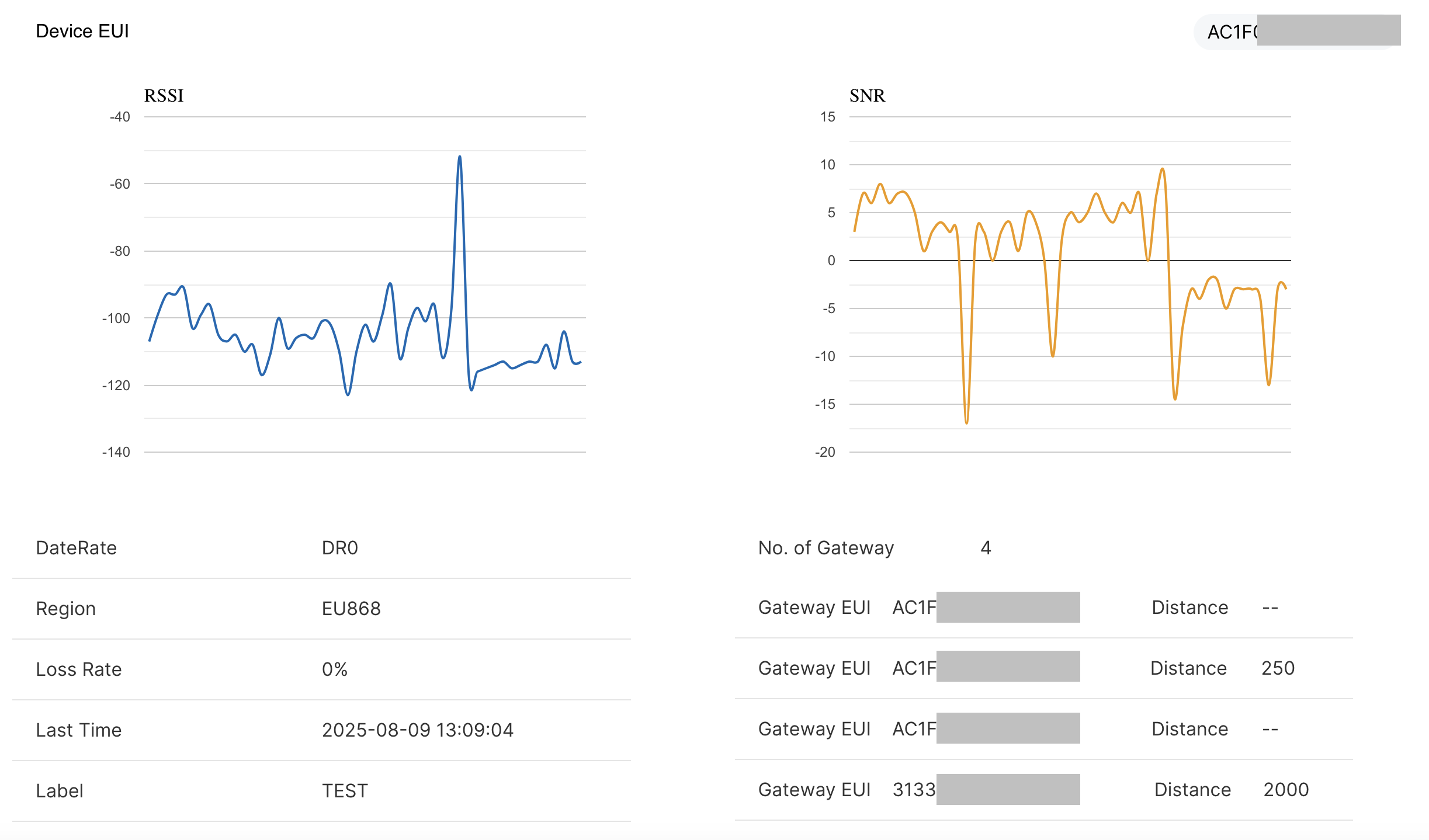
@carlrowan Here’s the thing, TLS settings can’t skip “Client Certificate” and “Client Key” some deployments don’t need it and still don’t have the option to generate “Client Certificate” and “Client Key” so you can’t configure this option…
@carlrowan The next thing is the “LoRa Network Server” field where you select what you want to sign for AWS, TTN, TTI etc. it is necessary because and so “topic” can change there is no everything lub although the “Other” field.
@carlrowan And this is very important: WHAT IF I HAVE SOME GOALS (4-5)? Do I have to configure this “extension” on each what the meter shows then?
Hi @maciej.glowacki ,
I would share some thoughts and ideas based on your replies.
- Internet connection is needed on the gateway side that has the extension because the LNS is on the cloud. The extension can work locally without internet if you use built-in LNS of WisGate OS or if chirpstack/tts is deployed in a local network. However, in your deployment it is in the cloud.
- Uplink RF parameters cannot be shown on the device without downlink since these parameters are captured on the LNS side. Only the downlink parameters can be shown on the device side without any backend process since these parameters are captured on the device itself without any need on LNS intervention. Of course the LNS should support Linkcheck for this to be possible which TTS supports.
- With regards to TLS settings, you do not need to it make it work on your TTN/TTI. It should work even if it is not enabled.
- I do not understand this
WHAT IF I HAVE SOME GOALS (4-5). Does this mean configuration on LNS used? Yes. You have to setup it up based on the LNS you currently use.
Btw, what is the status of your field-tester now? Is it working already after selecting TTI or still has problems? Does it shows the Downlink parameter (Linkcheck working)?
@carlrowan Ad1. Sure but that’s not the point - the point is that none of the RAK developers have handled such a situation have any of you tried to log into the “extension” as there is no internet? After entering this tab, you have to check if there is internet, if you are loading the extension, and if not, the message “you do not have internet connection” will be displayed. And so the gateway is not responding because the truck is trying to connect to the internet. This is a mistake.
@carlrowan Ad4. I have an installation where there are 5 RAKWirles gates of different type (RAK7289, RAK7268, WisGate Soho) what will the meter show? Will I be getting signal measurements from all gateways or the best signal?
Ad4. So I know that parameters like: RSSI, SNR, number of gateways that received the message are measured per gateway and LNS. But there is always an LNS and you can submit this information through LinkCheckAns.
@carlrowan “Btw, what is the status of your field-tester now? Is it working already after selecting TTI or still has problems? Does it show the Downlink parameter (Linkcheck working)?”
The situation looks like this - I configured as I described in the post above with TTS:
Uplink: v3/{application id}@{tenant id}/devices/{device id}/up
Down: v3/{applicationId}@{tenantId}/devices/{deviceId}/down/push
And the meter and extension are working - it would be nice if you could confirm that this is an improved setup and answer point 4.
Hi @maciej.glowacki ,
I did some testing on my field test extension. I am connected to the Gateway with it acting as access point. You can see here that there is no internet connection but I can still change the settings of the field test extension. You can refresh the page if you see any error or delays.
For the MQTT, you can set it up manually (just like you did) but you can also leave it as is like what I did on this one. It is handled by the extension automatically.
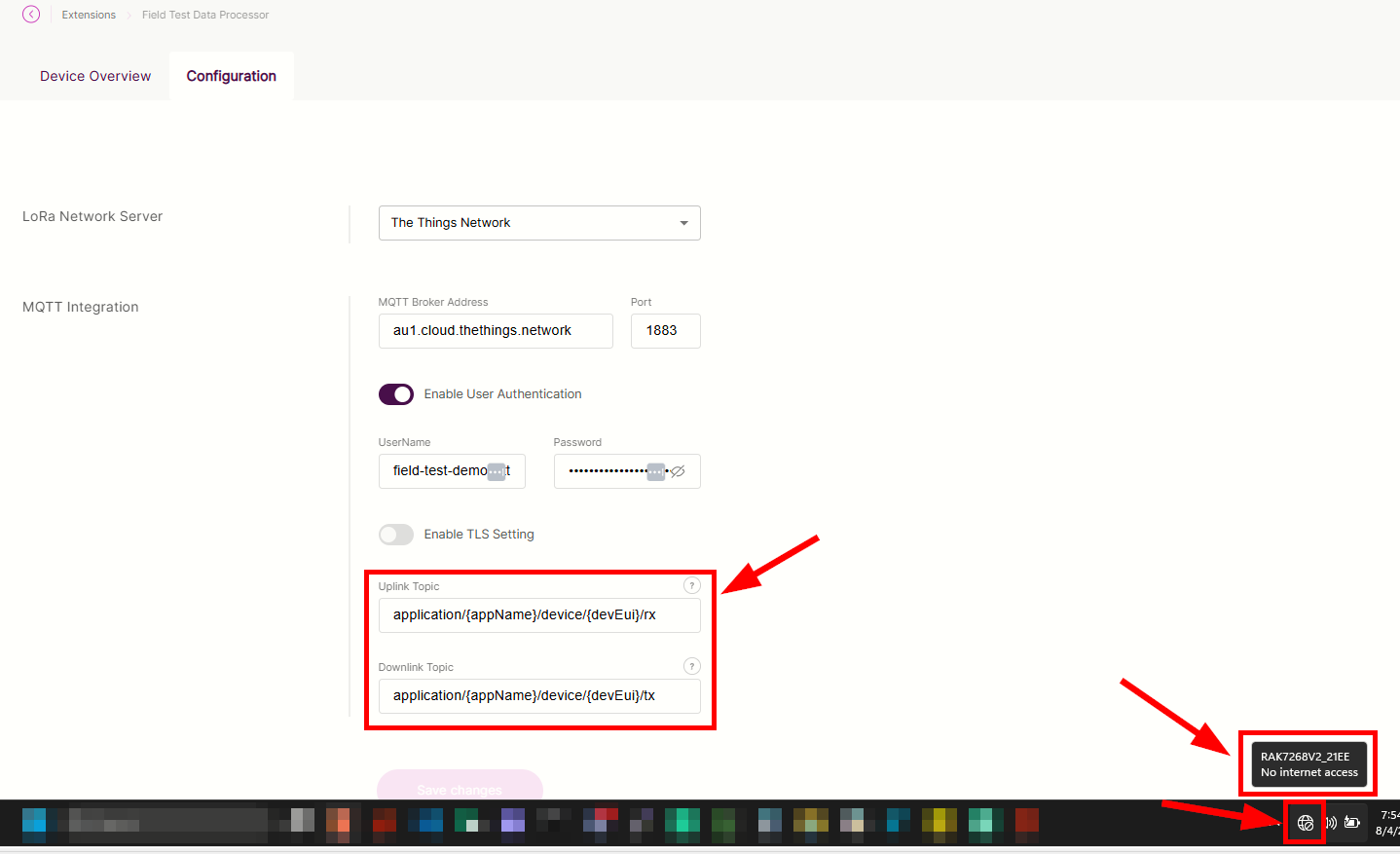
As for the linkcheck, I am not sure if there is a way for you to put any payload on linkcheckans. On standard, it provides the demod margin and no of gateways.
On multiple gateways, the field tester will only display the best signal.
In my setup, I can still access the extension even if this is disabled.
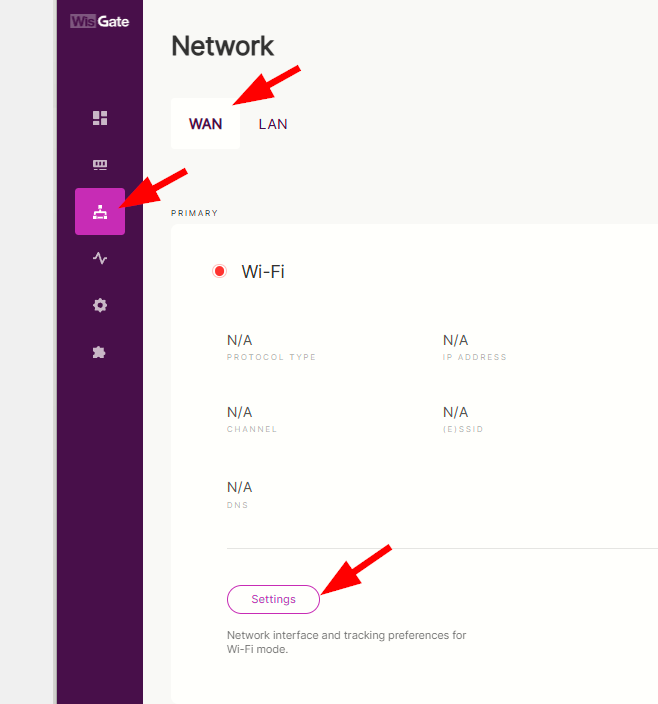
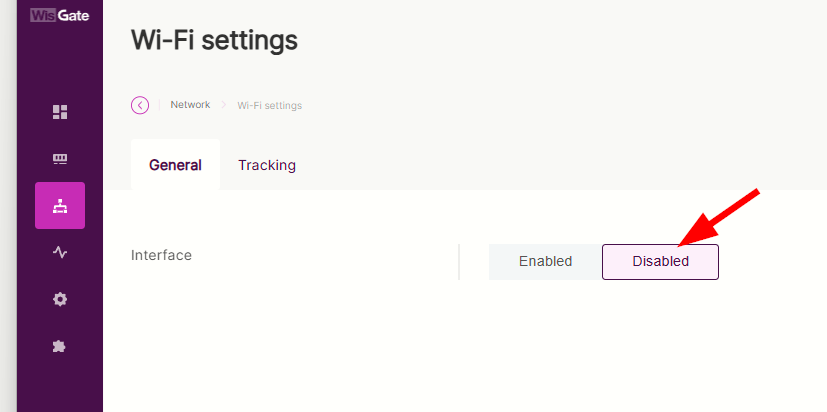
Can you please confirm if those screenshots I shared is the WLAN interfaces you are pertaining to? Or there is something else?
Super, If you have a WisGate Edge Lite 2 gateway, disconnect the cable from the back of the gateway. You can do a second experiment by entering the wrong “topic.” In both cases, you’ll get “undefined behavior” from the gateway. The next thing I noticed was how many networks were displayed on the Wi-Fi network. In my building, I have over 30, and only a few were displayed.
I see. I am confirming with our team about the “topic”. This should be handled automatically. Actually, I had mistakes on the topic as well and aside on not working Field Test Extension, I do not see any side effects. On my setup, the WisGate Edge Lite 2 is acting as access point and I can connect to it wirelessly without Ethernet cable. So far, it is ok but I have to occasionally reconnect because if I change setting, the gateway restarts. It can also be that during this restarting that you experience unstable/undefined state.
@carlrowan Here’s a video. I disabled all interfaces and got this result – and now what’s a user supposed to think: incorrectly configured MQQT: wrong password, wrong login, wrong port, or no internet connection? Unfortunately, the video can’t be added…
After a while, you might still suspect that WLAN (WiFi) isn’t working, but LTE is. When the transfer is complete, the interface still glows green, but there’s no internet…
As I wrote, there may be several reasons for the error: no internet, wrong MQTT parameters name, port, login password, wrong topic - you do not support any of these errors, so for the person configuring it is a waste of time and a source of frustration.
I understand what you mean on this one and we do try our best to support our customers on navigating this. The gateway is more complicated than our standard wifi routers where you just setup something and it is running fine almost indefinitely. With the gateways there are many parameters to configure with different setting depending on the use case. In the same way, once setup, it should be working fine.
But in my experience, the frustrating part is when the gateway restarts and you lose connection to it during configuration. You just need to make sure you get back connected again. With regards to Field Test extension, internet connection is really needed so you need to check if the LED Breathing light is Blue otherwise, that’s the first thing to fix. Ensure its connectivity is fine either via wired ethernet, WiFi or Cellular.
The LED indicators at the back panel as well as the blue LED breathing should provide user feedback on gateway status.
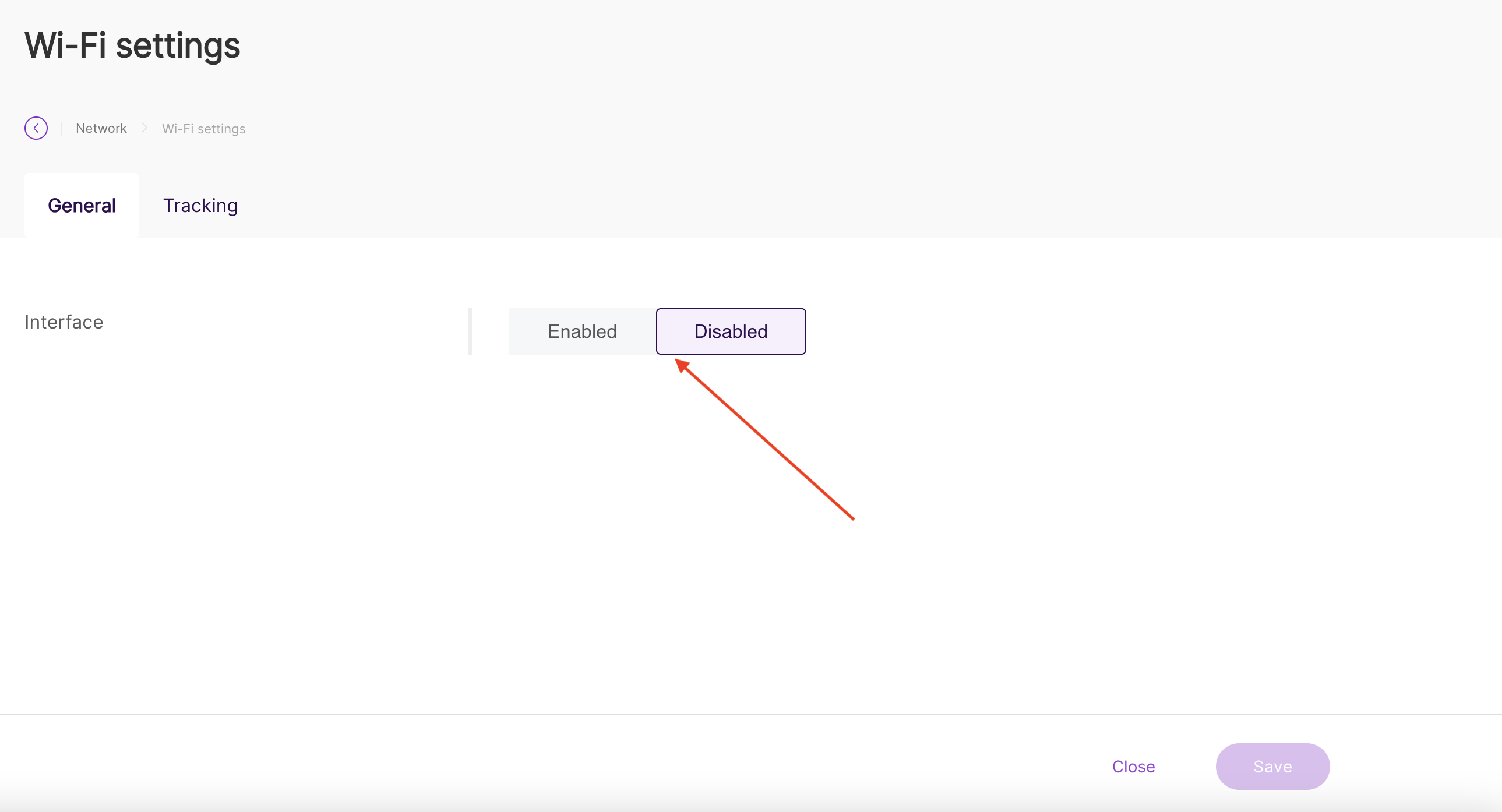
@carlrowan If you have gateways like “Soho,” the light won’t come on, or gateways on a rooftop mast. All of this can be resolved by writing error handling. See if enabling and disabling Wi-Fi requires restarting the entire gateway? Imagine such an operation on a server or even a PC.
Hi @maciej.glowacki ,
Thank you for your feedback. Your input as our user will be helpful to us.
I already relayed this to WisGateOS team. They will evaluate possible action items related to this.
@carlrowan Tell me, does this “extension” require special “payload formats” in TTS? If so, could you paste the correct one? Because I see that the GPS position is not being sent yet.
You can use this decoder.
If the payload you see is not in fport 1 which contains the GPS coordinates, it means that the field test extension is not yet working.
You can bypass the field test extension by forcing a downlink. That is related here - RAK 10701-PLUS How to enter in LinkCheck Mode - #4 by carlrowan
@carlrowan The data is stored in some database. How can I manage this, for example, by clearing the data; will it accumulate incrementally? How much space is available? I see that the meter data, despite readings, isn’t saved in the database, and after downloading Excel, there are no results.